
xTool are leading the pack right now with their lasers.
Not only do they have the best range and variety of laser engravers for the home or small studio users, but now Creative Space, their own free laser control and design software, is getting new features that make it in some ways better than LightBurn (the industry standard) and easier to work with than Glowforge (for a long time my recommendation for absolute beginners).
Let’s take a look at the new features that could put xTool Creative Space ahead of the competition.
The first is a biggie …
1. xTool Materials Library: Easily Load Settings for Speed and Power
One of the tricky parts for any laser user is perfecting the power and speed settings for new materials.
It is one of the reasons laser brands, most notibly Glowforge, also sell materials (as well as profit motive, of course). These “officially recommended” settings are a source of convenience and comfort.
Running test grids has always been the reliable, if time and material consuming, go-to solution. A pain but less error prone and less expensive than trying random settings and seeing what works.
With xTool Creative Space v2 and the xTool Materials Library, finding the right material settings is now a breeze.
400+ materials with 5000+ parameter grids have been loaded into an online database. Apparently around 20,000 hours of work has been put in.
This makes the process of selecting the correct laser settings smoother and easier than any other brand on the market.
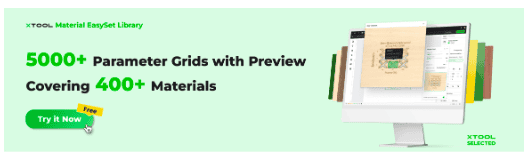
Of course, even with such a comprehensive database already, not every imaginable material is there, plus every specific piece of material, every laser, and each environment is different, but it is an excellent starting point for you to really dial in and customize settings to your preference.
When you go to the xTool “EasySet” Materials Library you are presented with essentially a search engine. You can filter to only show the machine(s) you have, and browse or search by keyword.
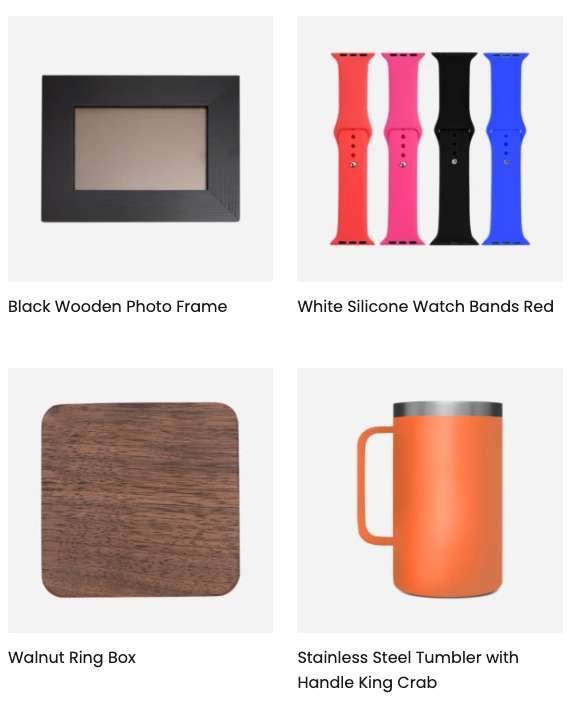
When you find the material you want, you can select which setting you need (score, cut, engrave, etc).
Here is 3mm Basswood Plywood engrave settings for my xTool S1 40W.

Note that you get a visual representation of how different speeds and power % impact the result, and you can click a specific logo in the photograph for the precise setting you prefer.
In my case above, I like the fast and low power result.
Once you have made your pick you simply click “Open in XCS” and it loads up the material profile for you to use right now and in the future.
2. Snapshot Camera Preview for Lasers Without Cameras
Of all the new features in the, admittedly free software, this one is my least likely to use in practice, but it is still cool.
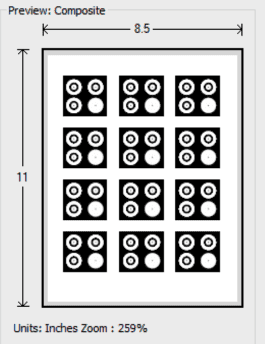
This feature allows you to take a photograph “snapshot” and use that to position your designs on the laser bed.
But wait, the xTool S1 doesn’t have a camera!
xTool have worked around this by using your smartphone in place of a built-in camera. It works by looking for special target markers in your photo.
This eliminates the need for repeated calibration and provides shockingly accurate design placement, again making things simpler for beginners and minimizing material waste.
3. Improved Laser Path Planning
The software’s newly updated intelligent path planning feature optimizes laser usage for more efficient processing, cutting and engraving.
xTool claims there should be up to 3x faster performance, and it is particularly beneficial for batch processing and bulk projects.
4. Built-In Vector Node Editing
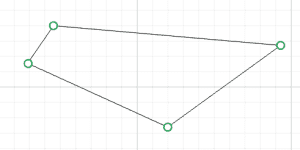
Switching between Adobe Illustrator and the laser software for minor design tweaks quickly becomes a pain.
Creative Space now allows users to edit vector graphics nodes directly within the software.
I don’t recommend designing complex projects in XCS or LightBurn, or Carbide Create for that matter, but when you need to quickly tweak or make something it is a nice option to have at your disposal.
5. Manage Multiple Machines
Previously, users could only communicate with one laser at a time.
Obviously many single xTool laser owners will be happily oblivious but managing multiple machines is something we take for granted in other fields, and was frustratingly missing using xTools free software.
With the latest update, the software has the ability to connect to different machines simultaneously.
At the time of writing I have four xTool machines (xTool D1, S1, F1 and P2) and they all have their advantages. I have plans to put them to heavy use for producing products, so it is nice that I can have them all running at the same time if I wanted to. This reminds me that I haven’t yet written about the F1!
This feature is definitely a much-needed game-changer for studios and workshops with multiple laser machines running simultaneous jobs, enabling more efficient multitasking.
Not only that, users can open multiple canvases and edit while the machine is running a different design.
Conclusion
Some really great advancements here I am sure you will agree.
Managing multiple machines has been a gaping hole in the features for a while, but the materials library is both surprising and in hindsight super obvious.
While I am not sure how often I will use the snapshot feature, or even the vector node editing, I am excited by the performance improvement and I hope they keep improving it!
What do you think? Do any of these features move the needle for you?

 Longer Laser B1 20W Review